Komodo WebOS Add-on Install
Jump to navigation
Jump to search

Brief Description
|
Add-On Prerequisites
|


Komodo WebOS Add-on Download
Download the Komodo webOS Add-on from Templarian HERE
- This is the Add-on you'll need for Palm Pre development. Go to this page and view the link to the file.
- You'll need the .xpi file itself, save into any folder.
Komodo WebOS Add-on Install
- Run Komodo first.
- Then open the folder where you've saved the Add-On .xpi file
- Arrange windows so that you can view them With both Komodo and the Folder open at the same time.
- Drag-and-drop the .xpi into Komodo, to the blank space right of Help on the menu bar, below the blue title bar as shown here (the white icon in this image is the dragged-over .xpi file)

Dropping the XPI file into Komodo
- When you release the dragged-over icon, it will install itself into Komodo.
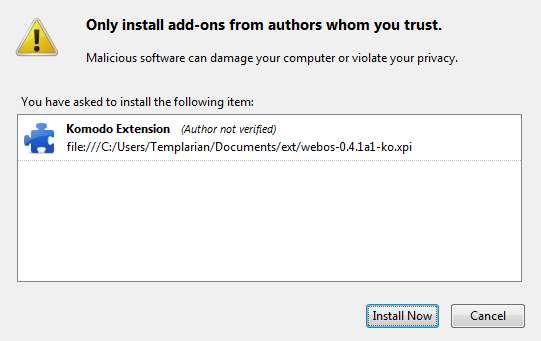
- Komodo detects the install attempt and shows the Authors Whom You Trust warning.
- You must choose INSTALL NOW button - this is the execution of the install.

Install Screen
- You only need to do this once - future upgrades happen automatically from within Komodo Edit, itself.
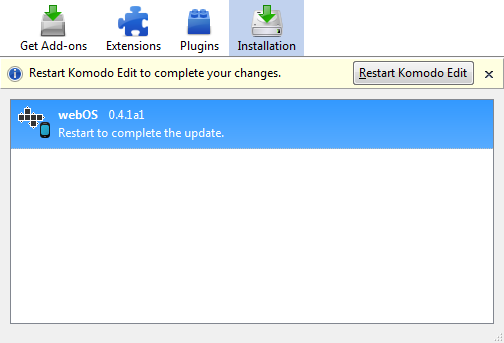
- Next Komodo should show the completed Add-ons completion screen shown below.
- Choose RESTART KOMODO EDIT button to restart Komodo, for the Add-On to begin running.

Restart Screen
Enable the WebOS Add-On
- The Komodo WebOS Add-On is disabled by default after install.
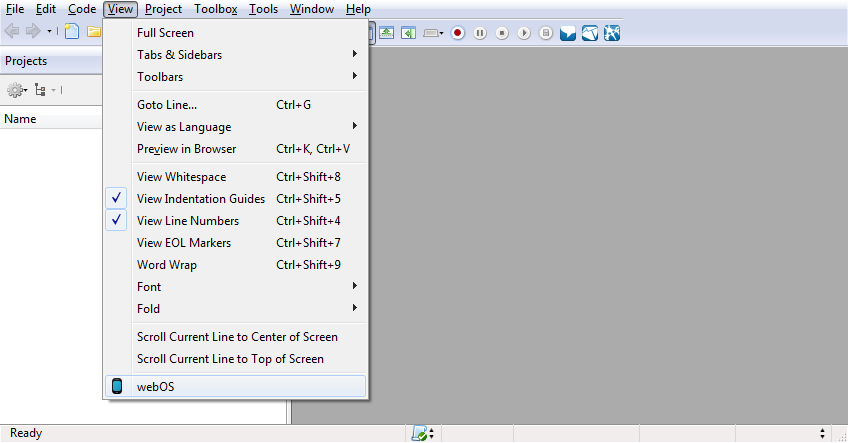
- In order to enable it, go into menu item View - and choose WebOS near the bottom.

Enable webOS Tab
Verify the Install
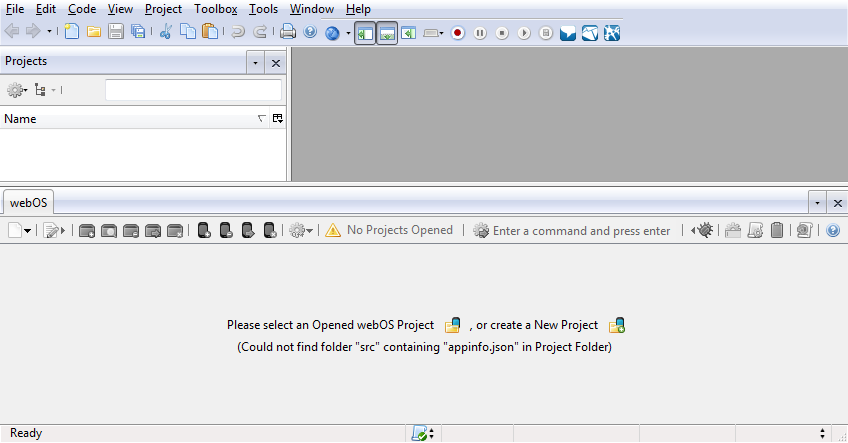
- Your finished Komodo should look like the below.
- If you can see the new tab for the Add-On near the bottom section "WebOS", the install worked.
- Some options are disabled (greyed-out) at first if there isn't yet a project open. This is expected.
- Future updates are automatic on startup of Komodo!

webOS Tab
Code Intelligence
- Next we'll install the "Code Intelligence" add-on, which splashes code suggestions as-you-type.
Download Code Intelligence
- Download Code Intelligence to any local folder
Install Code Intelligence
From within Komodo, do menu items:
- Edit
- Preferences
- Code Intelligence
- Add an API CATALOG BUTTON near the bottom-right, and
- Browse to your download folder and Select the .cix file for Code Intelligence.
Verify Code Intelligence
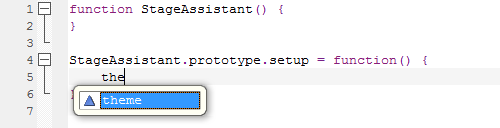
- Open any .js file,
- type the word them
- A pop-up should suggest theme
- If you don't see a pop-up, then you may be out of scope try Mojo..
- If you see the pop-up, then Code Intelligence is successfully enabled.

Code Completion Test
Updates
- Updates to Komodo WebOS Add-on are detected automatically, but not installed.
- You can also check for them manually
Install the Update

Manual Update
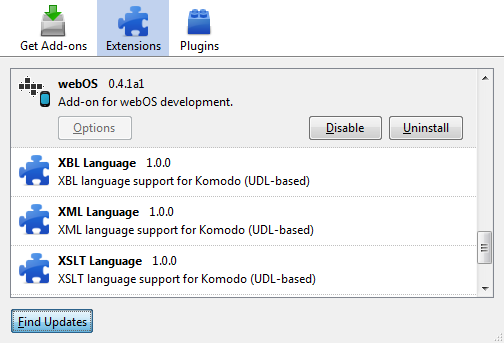
- To see available updates and install, do Tools - Add-Ons...
- At the bottom use the FIND UPDATES button
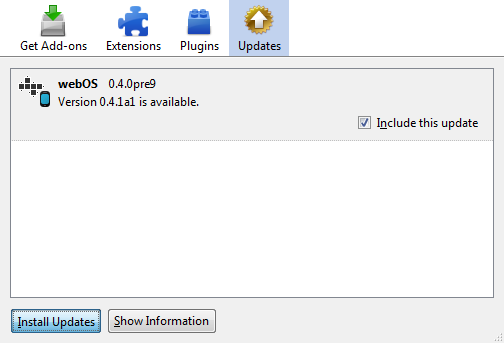
- If an update is found for the webOS Add-on, use the INSTALL UPDATES button.
- At completion of the upgrade, choose RESTART KOMODO EDIT button.

Install Update
Verify
- In Komodo, do Tools - Add-Ons...
- At the bottom use the FIND UPDATES button again.
- Now, the result should be "no updates were found" - if so, you've successfully updated!